⚔️ Grimmora Vault: Setup Guide
Follow these steps to get access to the shared D&D vault and ensure your notes sync correctly without errors.
1. Install the Tools
You need the Git engine and the GitHub CLI (Command Line Interface) to link your computer to the vault.
-
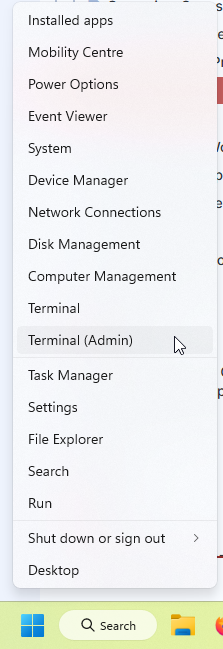
Open Terminal (Admin) by right-clicking the start menu.
-
Run this command:
winget install --id Git.Git -
Run this command:
winget install --id GitHub.cli -
Restart your Terminal window, still as admin after the installation is complete.
2. Authenticate with GitHub
This connects your PC to your GitHub account so you have permission to edit the files.
- Run this command:
gh auth login
- Follow the prompts:
- Where? GitHub.com
- Protocol? SSH
- Generate SSH Key? Yes
- Passphrase? (Optional, you can leave it blank)
- Authentication? Login with a web browser.
- Final step: Copy the code provided in the terminal and paste it into the browser window that pops up.
3. Set Your Git Identity
This tells Git who is making the edits so your name appears in the history.
git config --global user.name "Your Real Name"
git config --global user.email "your-github-email@example.com"
4. Download (Clone) the Vault
We need to disable a specific Windows setting to avoid “Ghost File” errors during the download.
Navigate to your Documents folder (or where you want to )
cd ~\Documents
Disable NTFS protection to handle Linux-style filenames
git config --global core.protectNTFS false
Download the specific v4 branch of the vault
gh repo clone L78k3/grimmora-pages -- --branch v4
5. Configure the Obsidian Git Plugin
Once you open the folder in Obsidian as a vault, go to Settings > Community Plugins and install “Obsidian Git.” Use these exact settings:
Automatic Settings
- Auto pull interval (minutes):
0 - Auto push interval (minutes):
10
Pull Settings
- Merge strategy:
Rebase(Crucial for shared vaults). - Pull on startup: Toggle ON (This is the “Auto-pull on open” feature).
Commit-and-Sync Settings
- Push on commit-and-sync: Toggle ON.
🛠️ Troubleshooting: “Ghost Files”
If you see a red error in Obsidian saying “invalid path :Zone.Identifier”, run these commands in your vault folder using PowerShell:
git reset
git checkout .
This forces Windows to clear the illegal metadata and brings your vault back in sync with GitHub.